> [!IMPORTANT]
> 🚀 **You want the latest and greatest! Use the Dev version (v3.3)**
> The Development version includes newest features, improvements and fixes before official releases.
> 👉 Download this:
> https://github.com/petripaavola/Get-IntuneManagementExtensionDiagnostics/blob/main/DeveloperVersion/README.md
# Get-IntuneManagementExtensionDiagnostics v3.0 (2024-09-17) #
**2024-09-17 update**
New version 3.0 **shows clear text PowerShell and Remediation scripts** in hover on ToolTip when using -Online option and you can copy scripts and other ToolTip text to clipboard. Also detects Autopilot Device Registration enrollment.
New version 2.4 Fix **AppWorkload.log** file change.
New version 2.3 uses **Microsoft.Graph.Authentication** module.
New version 2.0 creates HTML report which has more information and for example has additional info in HoverOn ToolTips.**
This script **analyzes** Microsoft Intune Management Extension (IME) log(s) and creates timeline report from found events.
For Win32App delivery it also shows summary of download statistics with estimated network bandwidth and **Delivery Optimization** statistics.
It also includes really capable **-LogViewerUI** for Intune log(s) viewing and troubleshooting.
Go to script [Get-IntuneManagementExtensionDiagnostics.ps1](./Get-IntuneManagementExtensionDiagnostics.ps1)
[](https://github.com/petripaavola/Get-IntuneManagementExtensionDiagnostics/blob/main/pics/Get-IntuneManagementExtensionDiagnostics_v2.0_FullReport.jpg?raw=true)

 Timeline report includes information about Intune events
* **Win32App**
* **WinGetApp**
* **Powershell scripts**
* **Proactive Remedation scripts**
* **custom Compliance Policy scripts**
Windows Autopilot ESP phases and other information is also shown on timeline.
### Usage: ###
**Download** script from PowershellGallery with command:
```
Save-Script Get-IntuneManagementExtensionDiagnostics -Path ./
```
**Run script**
```
./Get-IntuneManagementExtensionDiagnostics.ps1
# or to get Intune Powershell script names from Graph API use -Online parameter
./Get-IntuneManagementExtensionDiagnostics.ps1 -Online
```
**-Online** parameter will download Powershell script names from Graph API. Win32App and WinGetApp names are detected from Intune log files.
-Online parameter requires Microsoft Graph module **Microsoft.Graph.Authentication** installation.
You can install **Microsoft.Graph.Authentication** module to your user account with command
```
Install-Module -Name Microsoft.Graph.Authentication -Scope CurrentUser
```
**In Windows Autopilot Shift-F10 Command Prompt during Windows Autopilot Pre-Provisioning or Enrollment Status Page**
```
Powershell.exe
cd C:\ProgramData
Set-ExecutionPolicy bypass -Scope Process
Save-Script Get-IntuneManagementExtensionDiagnostics -Path ./
./Get-IntuneManagementExtensionDiagnostics.ps1
# -Online when you need to get displayNames to Powershell scripts
./Get-IntuneManagementExtensionDiagnostics.ps1 -Online
```
### Parameters ###
**-AllLogEntries** **-AllLogFiles**
Open all supported log files (IntuneManagementExtension and AgentExecutor) automatically and also show all log events
**These options prevents showing UIs which asks same information**
```
.\Get-IntuneManagementExtensionDiagnostics.ps1 -Online -AllLogEntries -AllLogFiles
```
**-LogFile**
Open log file specifying fullpath to logfile
```
./Get-IntuneManagementExtensionDiagnostics.ps1 -LOGFile -LOGFile "C:\temp\MDMDiagReport\IntuneManagementExtension.log"
```
**-LogFilesFolder**
Open log files folder and show UI where you can select what Intune log files to open.
You can copy Intune client logs from **C:\ProgramData\Microsoft\IntuneManagementExtension\Logs** folder and analyze logs in another device.
Or you can download Intune logs from remote computer with Intune action **Collect Diagnostics** and analyze in another device.
```
./Get-IntuneManagementExtensionDiagnostics.ps1 -LogFilesFolder "C:\temp\MDMDiagReport"
```
**-ShowAllTimelineEntries**
Shows start events on Timeline.
```
./Get-IntuneManagementExtensionDiagnostics.ps1 -ShowAllTimelineEntries
```
Intune Powershell scripts' outputs and errors can be also shown in Timeline view with parameters
**-ShowStdOutInTimeline**
**-ShowErrorsInTimeline**
**-ShowErrorsSummary**
This shows instantly what is problem with failed Powershell scripts
There are many more Parameters but these should get you started.
### LogViewerUI - better than cmtrace.exe ?-) ###
Script also includes really capable Log Viewer UI when script is started with parameter **-ShowLogViewerUI**
```
./Get-IntuneManagementExtensionDiagnostics.ps1 -Online -ShowLogViewerUI -ConvertAllKnownGuidsToClearText
```
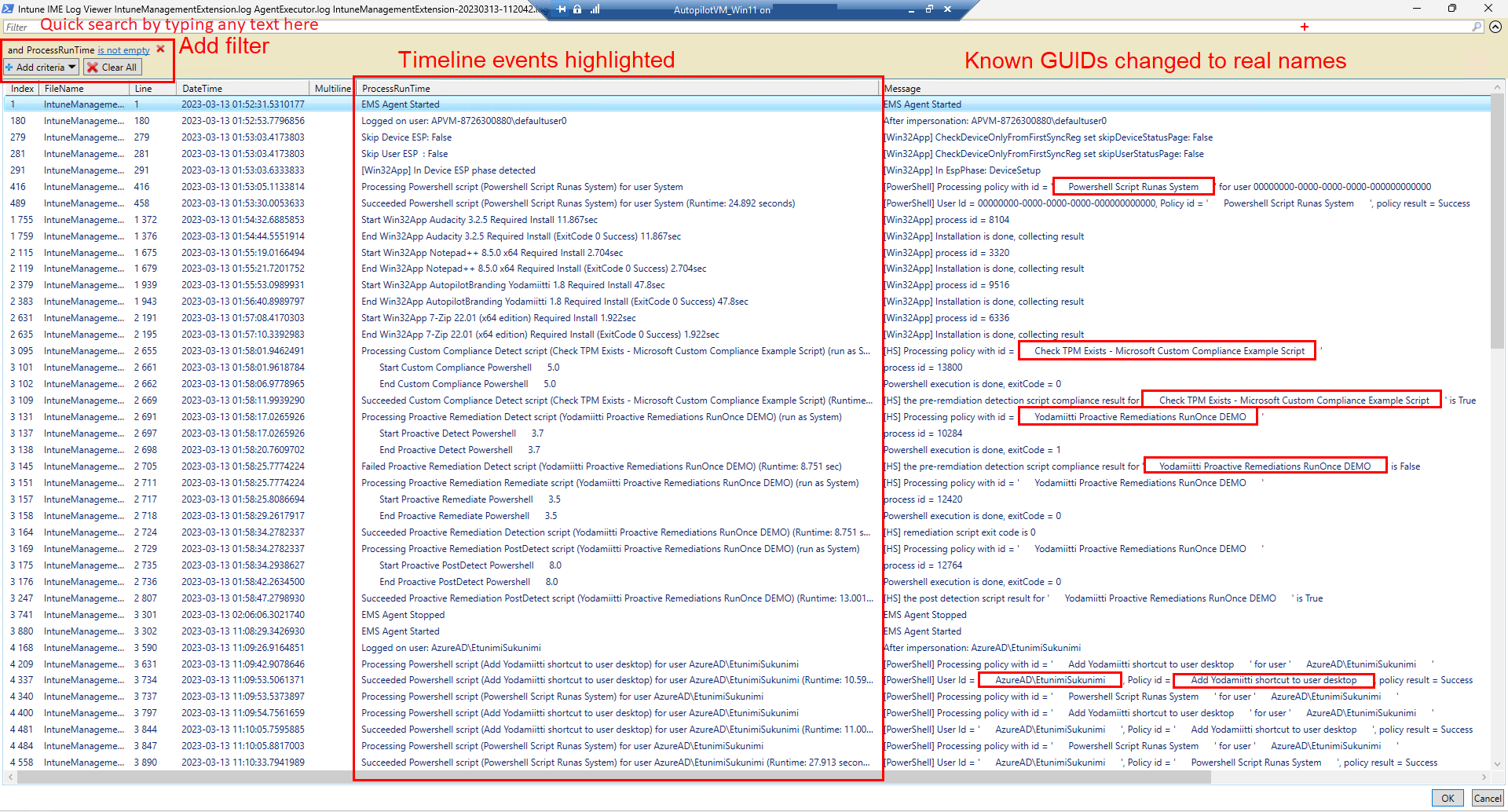
LogViewerUI (Out-GridView) looks a lot like cmtrace.exe tool but it is better because all found Timeline events are added to log for easier debugging.
Parameter **-ConvertAllKnownGuidsToClearText** replaces all known GUIDs to real App and script names. This makes viewing log 1000% easier.
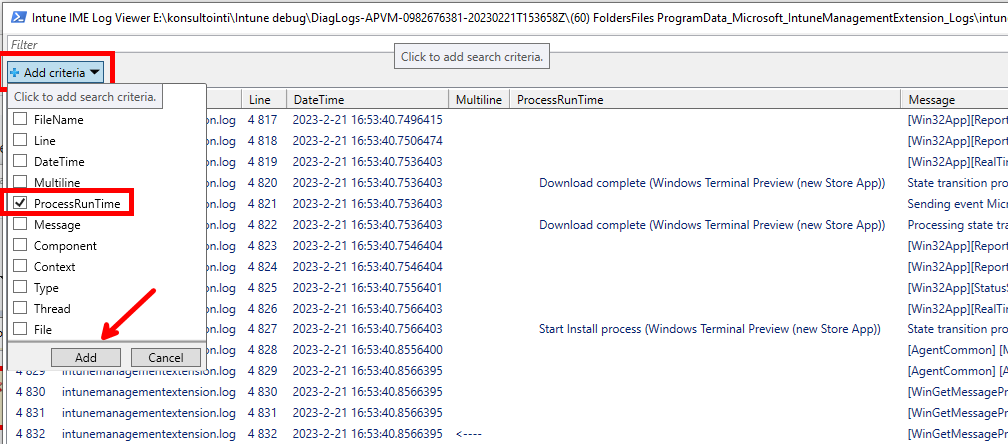
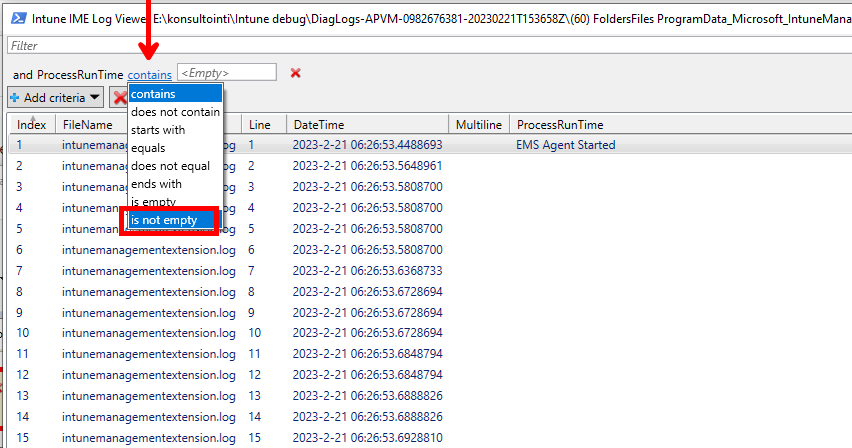
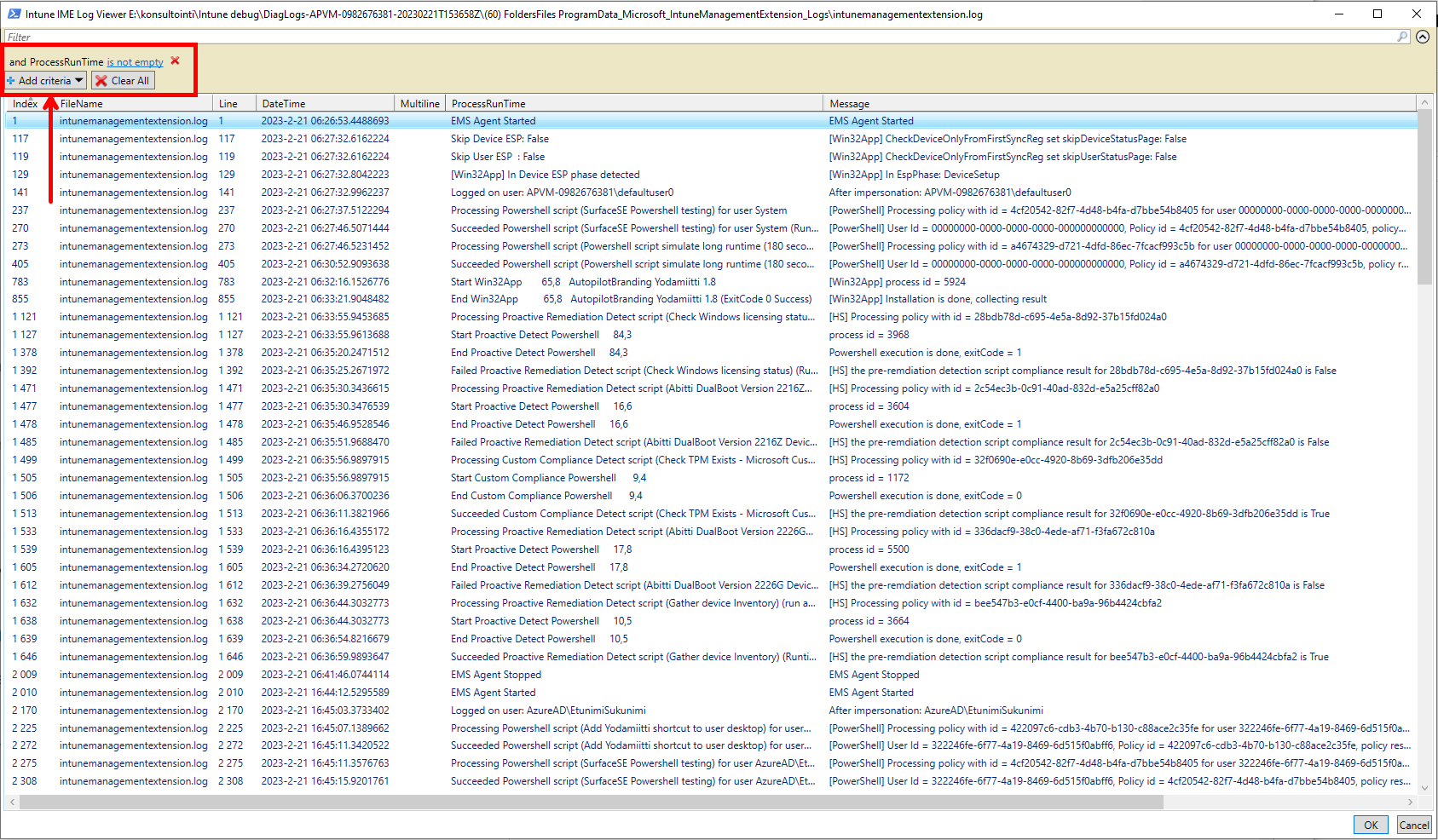
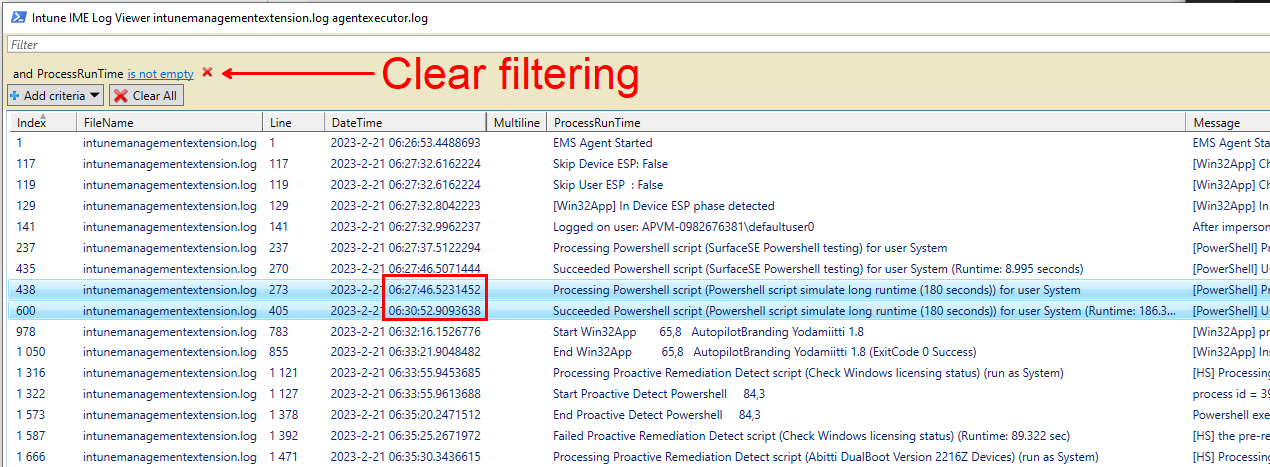
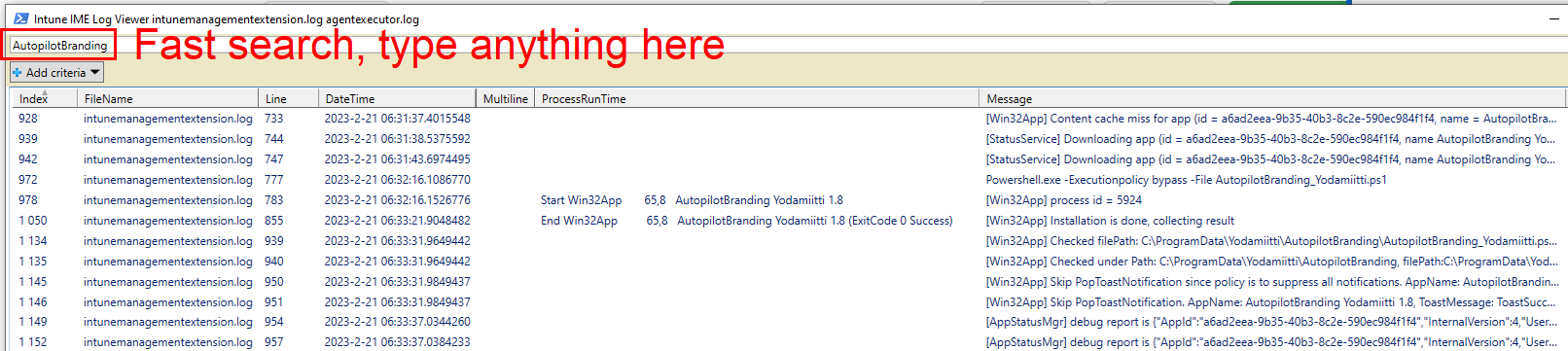
LogViewerUI has good search and filtering capabilities. Try to filter known log entries in Timeline:
**Add criteria -> ProcessRunTime -> is not empty**
Selecting last line (RELOAD) and OK will reload log file.
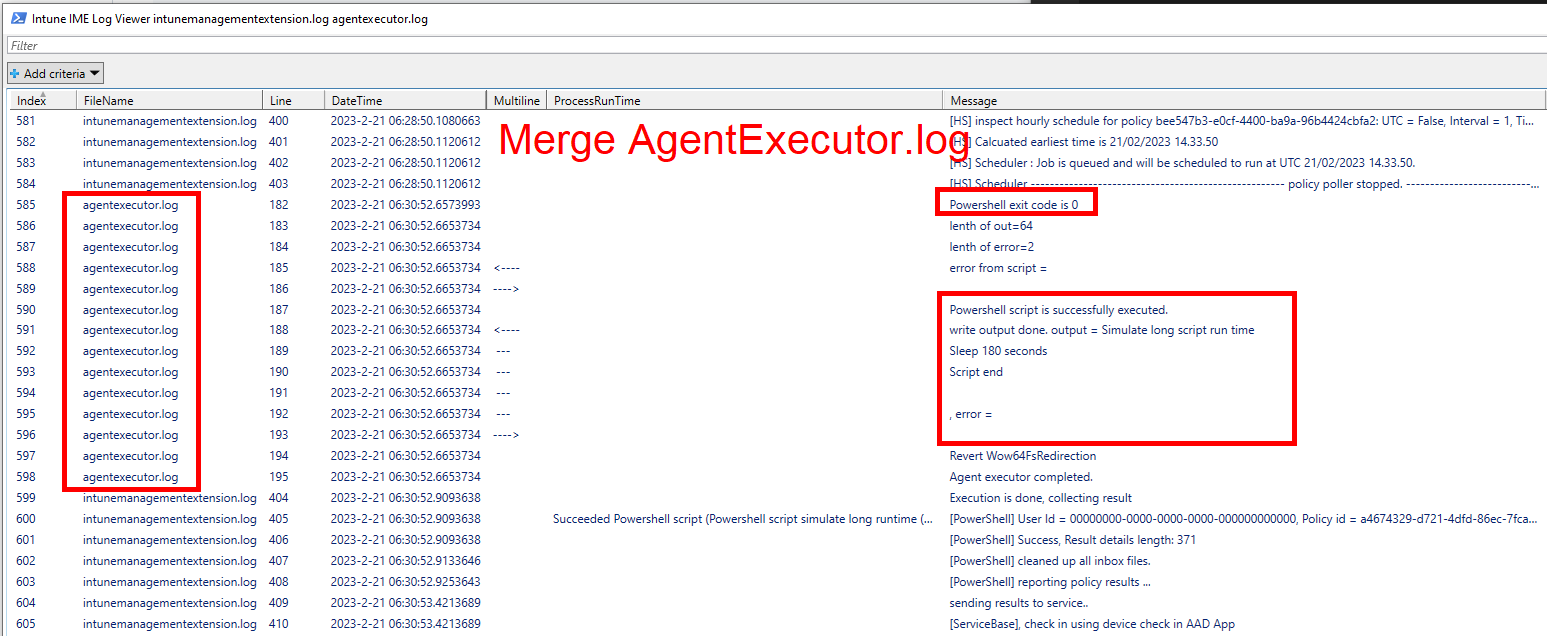
Script can merge multiple log files so especially in LogViewerUI you can see Powershell command outputs from AgentExecutor.log
Check [screenshots](https://github.com/petripaavola/Get-IntuneManagementExtensionDiagnostics/tree/main/pics)
Timeline report includes information about Intune events
* **Win32App**
* **WinGetApp**
* **Powershell scripts**
* **Proactive Remedation scripts**
* **custom Compliance Policy scripts**
Windows Autopilot ESP phases and other information is also shown on timeline.
### Usage: ###
**Download** script from PowershellGallery with command:
```
Save-Script Get-IntuneManagementExtensionDiagnostics -Path ./
```
**Run script**
```
./Get-IntuneManagementExtensionDiagnostics.ps1
# or to get Intune Powershell script names from Graph API use -Online parameter
./Get-IntuneManagementExtensionDiagnostics.ps1 -Online
```
**-Online** parameter will download Powershell script names from Graph API. Win32App and WinGetApp names are detected from Intune log files.
-Online parameter requires Microsoft Graph module **Microsoft.Graph.Authentication** installation.
You can install **Microsoft.Graph.Authentication** module to your user account with command
```
Install-Module -Name Microsoft.Graph.Authentication -Scope CurrentUser
```
**In Windows Autopilot Shift-F10 Command Prompt during Windows Autopilot Pre-Provisioning or Enrollment Status Page**
```
Powershell.exe
cd C:\ProgramData
Set-ExecutionPolicy bypass -Scope Process
Save-Script Get-IntuneManagementExtensionDiagnostics -Path ./
./Get-IntuneManagementExtensionDiagnostics.ps1
# -Online when you need to get displayNames to Powershell scripts
./Get-IntuneManagementExtensionDiagnostics.ps1 -Online
```
### Parameters ###
**-AllLogEntries** **-AllLogFiles**
Open all supported log files (IntuneManagementExtension and AgentExecutor) automatically and also show all log events
**These options prevents showing UIs which asks same information**
```
.\Get-IntuneManagementExtensionDiagnostics.ps1 -Online -AllLogEntries -AllLogFiles
```
**-LogFile**
Open log file specifying fullpath to logfile
```
./Get-IntuneManagementExtensionDiagnostics.ps1 -LOGFile -LOGFile "C:\temp\MDMDiagReport\IntuneManagementExtension.log"
```
**-LogFilesFolder**
Open log files folder and show UI where you can select what Intune log files to open.
You can copy Intune client logs from **C:\ProgramData\Microsoft\IntuneManagementExtension\Logs** folder and analyze logs in another device.
Or you can download Intune logs from remote computer with Intune action **Collect Diagnostics** and analyze in another device.
```
./Get-IntuneManagementExtensionDiagnostics.ps1 -LogFilesFolder "C:\temp\MDMDiagReport"
```
**-ShowAllTimelineEntries**
Shows start events on Timeline.
```
./Get-IntuneManagementExtensionDiagnostics.ps1 -ShowAllTimelineEntries
```
Intune Powershell scripts' outputs and errors can be also shown in Timeline view with parameters
**-ShowStdOutInTimeline**
**-ShowErrorsInTimeline**
**-ShowErrorsSummary**
This shows instantly what is problem with failed Powershell scripts
There are many more Parameters but these should get you started.
### LogViewerUI - better than cmtrace.exe ?-) ###
Script also includes really capable Log Viewer UI when script is started with parameter **-ShowLogViewerUI**
```
./Get-IntuneManagementExtensionDiagnostics.ps1 -Online -ShowLogViewerUI -ConvertAllKnownGuidsToClearText
```
LogViewerUI (Out-GridView) looks a lot like cmtrace.exe tool but it is better because all found Timeline events are added to log for easier debugging.
Parameter **-ConvertAllKnownGuidsToClearText** replaces all known GUIDs to real App and script names. This makes viewing log 1000% easier.
LogViewerUI has good search and filtering capabilities. Try to filter known log entries in Timeline:
**Add criteria -> ProcessRunTime -> is not empty**
Selecting last line (RELOAD) and OK will reload log file.
Script can merge multiple log files so especially in LogViewerUI you can see Powershell command outputs from AgentExecutor.log
Check [screenshots](https://github.com/petripaavola/Get-IntuneManagementExtensionDiagnostics/tree/main/pics)
 ### Backlog: ###
There are many features in development and planned in future. Stay tuned :)
### Known issues: ###
* WinGetApp install may be detected falsepositive wrong. There is WinGet App install fail and empty App name and UserName in Timeline view.
* Status: Fixed in version 1.1
* Win32App Uninstall is shown as Install at least in Supercedende case
* Verified that intent is not gathered right in Win32App and WinGetApp install/uninstall
* Status: Fixed in version 1.1
### Backlog: ###
There are many features in development and planned in future. Stay tuned :)
### Known issues: ###
* WinGetApp install may be detected falsepositive wrong. There is WinGet App install fail and empty App name and UserName in Timeline view.
* Status: Fixed in version 1.1
* Win32App Uninstall is shown as Install at least in Supercedende case
* Verified that intent is not gathered right in Win32App and WinGetApp install/uninstall
* Status: Fixed in version 1.1